Alex stared at his computer screen, overwhelmed. Three different QuickBooks desktop files. Two years of Excel spreadsheets. A shoebox of receipts from 2022. And somewhere in this chaos lay the financial story of his consulting firm—data he desperately needed to make smart decisions about hiring, pricing, and growth.
Sound familiar?
Here’s the thing most business owners get wrong about cloud accounting migration: they think their historical data is baggage—something messy to leave behind while they start fresh in the cloud.
Wrong. Your historical data isn’t baggage—it’s the foundation of your financial future. Those transaction patterns reveal your seasonal cash flow cycles. That client history shows which relationships actually drive profit. Those expense trends? They’re your roadmap for smarter budgeting.
But migrating years of financial data doesn’t have to consume your weekends or drain your sanity. Let’s walk through a proven process that gets you from spreadsheet chaos to cloud clarity—without the headaches.
Why Historical Data Migration Matters (More Than You Think)

Most entrepreneurs I meet want to start fresh. Clean slate, they say. New system, new beginning.
But here’s what happens when you abandon your financial history: you spend the next six months flying blind. Can’t predict cash flow because you don’t know your seasonal patterns. Can’t price services confidently because you don’t understand true project costs. Can’t make hiring decisions because you don’t know your capacity trends.
“We went from hoping we’d make payroll to confidently planning our next five hires,” shared one System Six client after their complete financial transformation. The difference? They didn’t just implement new systems—they imported three years of historical data that revealed growth patterns they never knew existed.
Your historical data tells stories that your gut feeling can’t match. Import historical data properly, and you’re not just getting organized. You’re unlocking insights that drive better decisions from day one.
The alternative? Starting fresh means you’ll spend months manually reconstructing trends you already had. That’s not efficiency—that’s expensive busywork.
The Pre-Migration Checklist: Set Yourself Up for Success

Before you touch a single transaction, stop. Take a breath. Migration done wrong creates bigger messes than the chaos you’re trying to escape.
Audit Your Current Mess
First, figure out what you’re actually working with. Desktop QuickBooks from 2019? Excel files scattered across three computers? Bank statements in PDF form? Don’t judge—just inventory.
Make a list of every system, file, and data source. Include that random spreadsheet your assistant created for tracking contractor payments. Everything matters when you’re building a complete financial picture.
Next, determine your migration depth. How far back do you realistically need? Most businesses benefit from 3-5 years of transaction history—enough to spot patterns without drowning in ancient irrelevant data. Going back to your business launch in 2015 might feel complete, but if 2020-2025 tells your real growth story, focus there.
Choose Your Migration Depth Wisely
Here’s where business owners waste massive amounts of time: trying to import everything perfectly.
Your 2018 office supplies purchases? Probably not crucial for 2025 decision-making. Your client’s payment patterns over the last three years? Essential.
Be ruthless about what matters. Perfect historical data doesn’t exist anyway—you’re aiming for useful, not flawless.
Back Up Everything (Seriously, Everything)
Before you start moving data around, create backups of your current systems. Not just the files you think are important—everything. That weird Excel file you haven’t opened in months might contain the only record of a major client payment.
Cloud storage is cheap. Data recovery from corrupted files is expensive and stressful.
Set Realistic Timelines
Software companies promise migration in “just a few clicks.” Marketing teams love simple promises. Reality is messier.
A straightforward migration from one QuickBooks file might take a week. Multiple systems with custom categories? Plan for several weeks. Complex inventory tracking or job costing? You might need professional help.
Don’t schedule your migration for the week before tax season. Don’t plan to “quickly handle it” between client projects. Give yourself breathing room.
Your Roadmap to Migration Freedom
Ready for the actual process? Think of migration as building a house—you need a solid foundation before you start moving in furniture.
Phase 1: Chart of Accounts Setup
This step determines everything that follows. Get your chart of accounts wrong, and you’ll spend months recategorizing transactions.
Start with your new cloud accounting platform’s default chart of accounts, but customize it for your business. Consulting firms need different categories than restaurants. SaaS companies track different metrics than service businesses.
Look at your current expense categories. Which ones actually help you make decisions? “Office Expenses” is useless if you can’t tell whether you’re spending more on software subscriptions or office supplies. Split it into meaningful subcategories.
Don’t go wild with detail, however. Forty-seven different expense categories won’t make you smarter—they’ll just make monthly reviews more tedious.
Phase 2: Data Extraction and Cleaning
Time to get your hands dirty with the actual data.
Export everything from your current systems. QuickBooks desktop? Use the built-in export tools, but double-check that you’re getting all the data you need—sometimes custom fields don’t transfer automatically.
Excel spreadsheets? Clean them up before import. Remove empty rows, fix inconsistent date formats, and standardize vendor names. “Office Depot,” “Office Depot,” and “OFFICE DEPOT” look like three different vendors to import software.
This cleanup phase feels tedious, but it’s where you prevent 90% of migration headaches. Spend an extra hour here, save yourself days of troubleshooting later.
Phase 3: The Import Process
Here’s where most people panic and start importing everything at once. Don’t.
Start with a small test batch—maybe just one month of transactions. Run the import, then check everything carefully. Do the categories make sense? Are vendor names consistent? Did all the transactions import correctly?
Fix any problems with your small test batch before importing years of data. Trust me—correcting categorization issues across 5,000 transactions is not how you want to spend your weekend.
Once your test batch looks clean, import it in logical chunks. Quarter by quarter works well for most businesses.
Phase 4: Reconciliation and Validation
After each import batch, reconcile everything. Compare your bank statements to what’s showing in your new system. Check that beginning and ending balances match your old records.
Look for obvious red flags: duplicate transactions, missing months, or expense categories that don’t make sense. Your office expenses shouldn’t suddenly triple in March without explanation.
This validation step isn’t exciting, but it’s crucial. Better to catch problems now than discover them during tax preparation.
Common Migration Headaches (and How to Avoid Them)
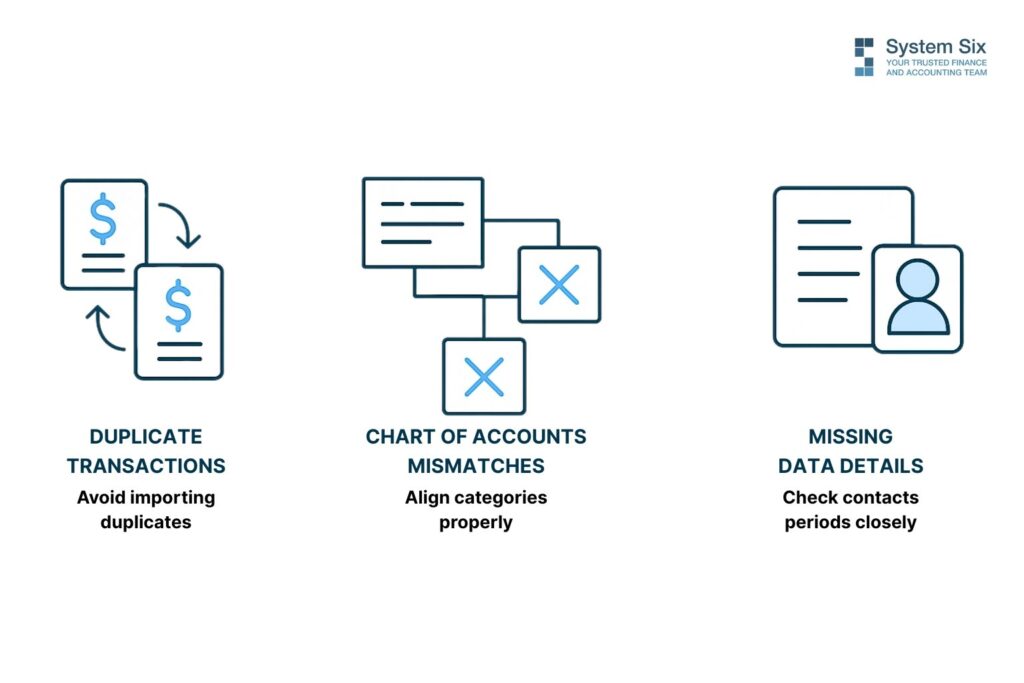
Even with careful planning, certain issues pop up repeatedly. Here’s how to sidestep the most common migration traps.
The Duplicate Transaction Trap happens when you accidentally import the same transactions from multiple sources. Maybe you imported bank feeds AND QuickBooks data, not realizing both contained the same transactions.
Prevention: Keep detailed notes about what you’ve imported from where. When in doubt, it’s easier to delete duplicates than track down missing transactions.
Chart of Accounts Mismatches occur when your old categories don’t align with your new system’s structure. Suddenly, all your “Travel” expenses are miscategorized as “Meals” and your reports look meaningless.
Quick fix: Map your old categories to new ones before importing. Create a simple spreadsheet showing how each old category translates to your new structure.
Date Range Disasters strike when you accidentally import overlapping time periods or miss entire months. Your December 2023 transactions appear in January 2024, throwing off your annual comparisons.
Prevention: Double-check date ranges for each import batch. Keep a calendar showing exactly which periods you’ve imported from which sources.
Missing Vendor and Customer Details leave you with transactions but no context. You know you spent $500 in March, but can’t remember whether it was the web developer or the marketing consultant.
Solution: Export vendor and customer lists separately, then import them before bringing in transactions. Most platforms handle this connection automatically once the vendor database is established.
When to Call in the Professionals

Let’s be honest about DIY migration limits.
You can probably handle straightforward QuickBooks-to-QuickBooks transfers yourself, especially if your chart of accounts is relatively simple and you’re comfortable with technology.
But certain situations scream “get professional help”:
Multiple disconnected systems that need consolidation. Complex inventory or job costing requirements. Years of inconsistent data entry need standardization. Tight deadlines with no room for trial-and-error learning.
“System Six transformed us from a reactive business to a strategic one,” explains one business owner whose migration included three separate systems and five years of data. “I was spending 20 hours weekly on financial administration. Now I spend 15 minutes reviewing automated reports.”
The investment in professional migration typically pays for itself within months through time savings alone. But the real value comes from having clean, reliable data that actually supports decision-making.
Here’s a simple cost-benefit framework: estimate how many hours you’d spend on DIY migration, multiply by your hourly rate, then add the opportunity cost of delayed projects. If that number exceeds professional migration costs, the choice becomes obvious.
Most businesses discover that professional migration costs less than they expected while delivering results faster than DIY efforts.
Your Time is Worth More Than DIY Struggles
Bottom line: Successful historical data migration gives you two things that matter—better decisions and reclaimed time.
Better decisions because you can spot trends, predict cash flow, and understand what actually drives profit in your business. Reclaimed time because you’re not spending weekends wrestling with corrupted import files or hunting down duplicate transactions.
The businesses that thrive after cloud migration aren’t the ones with perfect data—they’re the ones that moved fast, fixed problems as they found them, and started using their new systems to drive growth.
Your historical data is waiting to tell you stories about seasonal patterns, profitable clients, and growth opportunities. But only if you can access it reliably.
Start with the pre-migration checklist today. Pick your migration depth. Back up your files. Set realistic timelines.
What business decisions are you delaying because you don’t trust your historical data? The sooner you migrate properly, the sooner you can stop guessing and start growing with confidence.
About System Six
System Six is a Seattle-based bookkeeping and financial services firm that helps small and mid-sized businesses streamline their financial operations. We specialize in providing technology-driven financial management solutions for consulting firms, allowing owners to focus on growing their businesses without worrying about cash flow, payroll, or compliance issues. Our team of over 35 professionals brings an average of 10+ years of accounting experience to every client relationship, serving more than 175 businesses across the U.S. From accurate bookkeeping to cash flow forecasting, we deliver the financial clarity and peace of mind that consulting firm owners need to thrive. Learn more at www.systemsix.com.